Google Drive Viewer, Commenter or Editor: Give the Access People Need
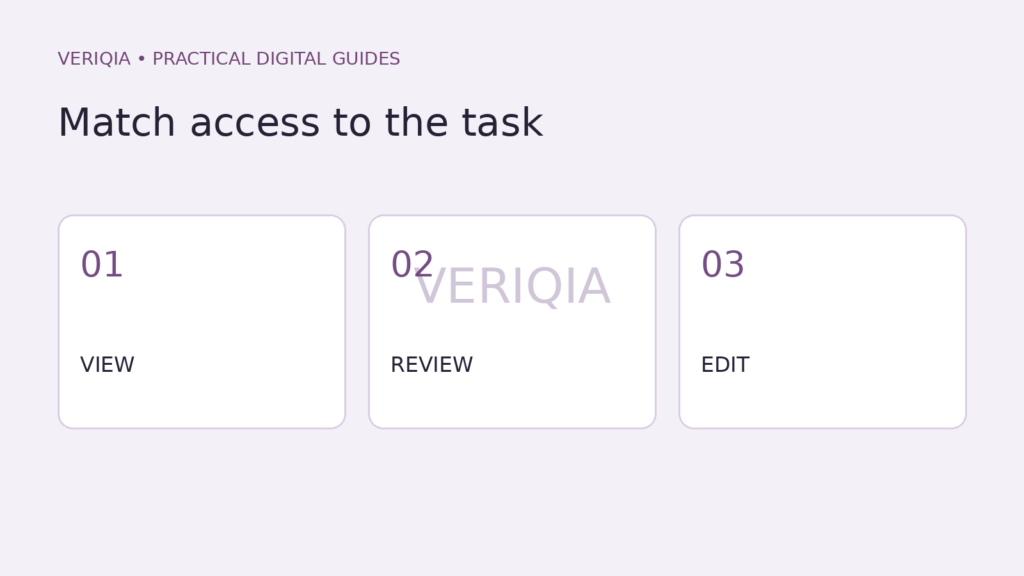
Choose Viewer when someone needs to read a Google Drive file, Commenter when they need to give feedback, and Editor when they need to change its contents. Then inspect general access and the containing folder. The role selected for one person is only part of the file’s access picture.
Start with the recipient’s task
Google describes Viewer as read access, Commenter as feedback access, and Editor as the ability to change content. Folder editors can also move, delete or add files, and sharing permissions may allow them to share items. That broader scope matters when you share an entire working folder rather than one document.
| Recipient’s task | Role to consider |
|---|---|
| Read an approved report | Viewer |
| Suggest changes for the author | Commenter |
| Update the working document | Editor |
For example, a reviewer checking the wording of a proposal may need comments, while a colleague responsible for rewriting a section needs editing. Giving both the same role can either create unnecessary access or prevent the intended work.
Check named access and general access separately
Open the item’s Share settings and check both the listed people or groups and the general-access setting. Google’s Restricted option limits access to people who have been granted it. “Anyone with the link” permits access through possession of the link, subject to the options and policies available for the account.
Think through where the link will travel. An attachment forwarded to a larger group and a restricted working link are different handoffs. Explain to the recipient which account they should use if the access is tied to a named account.
- Verify the recipient’s address before granting access.
- Choose the role that matches the actual work.
- Inspect the general-access setting.
- Check whether a group grants additional access.
The containing folder can change the answer
Google’s current guidance says items inherit their parent folder’s sharing permissions. You cannot simply reduce one person to Viewer on a file when that person has Editor access through the parent folder. The file’s location therefore matters.
As an illustrative case, a team folder may be appropriate for shared drafts but unsuitable for a restricted document. Review the folder permissions and the available limited-access options, or use an appropriately controlled location. Do not move a file casually without considering who depends on its current access.
Confirm the result after the change
Ask the intended recipient to open the file and perform the expected task. A reviewer should be able to review, while someone who only needs to read should not need to request editing just to see the document.
Revisit access when the task ends. If several people edit the same document, understand the recovery options before major revisions. Our guide to copying an earlier Google Docs version before restoring explains a useful review step.