Google Sheets Filter vs Filter View: How to Avoid Changing Everyone’s View
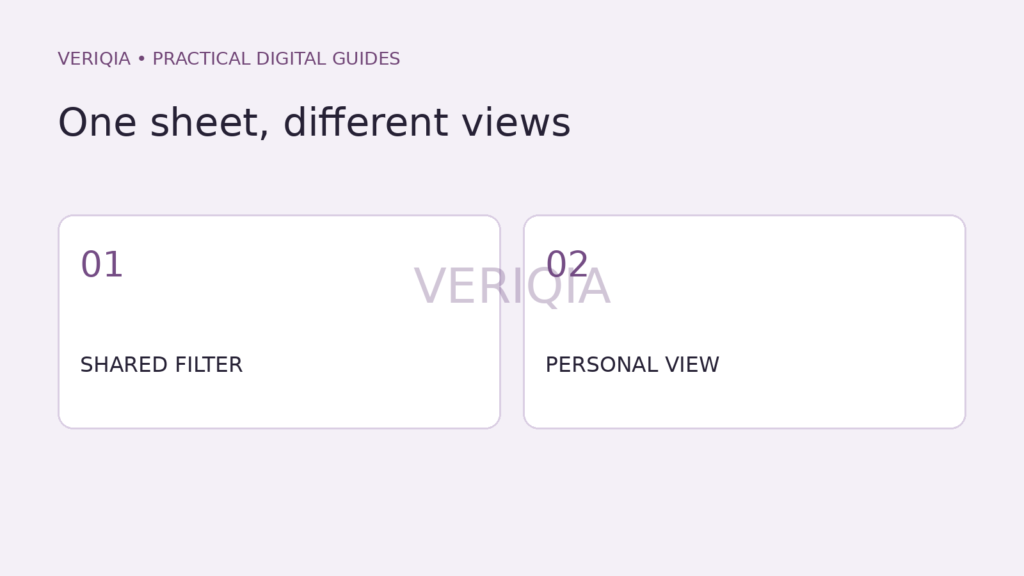
Use a filter view in Google Sheets when you want to narrow a shared spreadsheet without changing the view other people are using. A regular filter suits a common working view; a filter view suits a personal task, such as checking only the rows assigned to you. Neither is a reason to delete rows that you do not currently need.
The practical difference in a shared sheet
Google’s Sheets guidance distinguishes a regular filter from a filter view that does not affect other people’s views. Imagine a team tracking requests. One person needs overdue items, another needs requests from a particular customer, and a third needs the full list. Separate views make those tasks easier to perform against the same underlying data.
The distinction is about how you look at the sheet, not about making separate copies of its contents. Treat cell edits as edits to shared data. A different view is not a private sandbox for changing values.
Create a view around a specific question
On a computer, click a cell containing data, open Data → Create filter view, and apply the conditions needed for your task. Google’s current instructions then use Save view to name it and Data → Change view to reopen it. Labels can differ as interfaces change, so use the view controls available in your sheet.
Choose a name that describes the selection. “Open requests — customer review” gives more context than “View 1.” Keep the name aligned with the filter: a view labelled “Overdue” should not also hide a priority group unless that condition is intentional.
- Check that the selected range includes every relevant row.
- Confirm the column headings match the conditions.
- Test the view using a row you expect to include.
- Check a row you expect to exclude.
A view is not an access restriction
Do not rely on hidden or filtered rows to keep information away from someone who can open the spreadsheet. A filter is a convenience for reading data. Access decisions belong in the file’s sharing settings.
For example, a customer-specific view can help an internal account manager. It does not automatically make the full sheet suitable for sending to that customer. Prepare a separate approved dataset when the recipient should receive only selected information.
Read our guide to choosing Google Drive sharing permissions before handing a shared sheet to someone outside the team.
Leave a short explanation with the link
Tell colleagues what the view is for and which conditions it uses. If the sheet’s structure changes, recheck the view rather than assuming the old name still describes the same result. A useful habit is to review saved views alongside changes to the headings or tracking process.
If you need to hand the data to another application rather than collaborate on the sheet, first decide whether the recipient needs raw values or a full workbook. Our CSV versus XLSX guide explains that choice.